

Integrate Google, Apple or Outlook Calendar
Contracko's calendar shows all your contract dates in one place—start dates, end dates, notice periods, and notification reminders. View them in the built-in calendar or sync them to Google Calendar, Apple Calendar, Outlook, or any app that supports ICS feeds.
Web calendar view
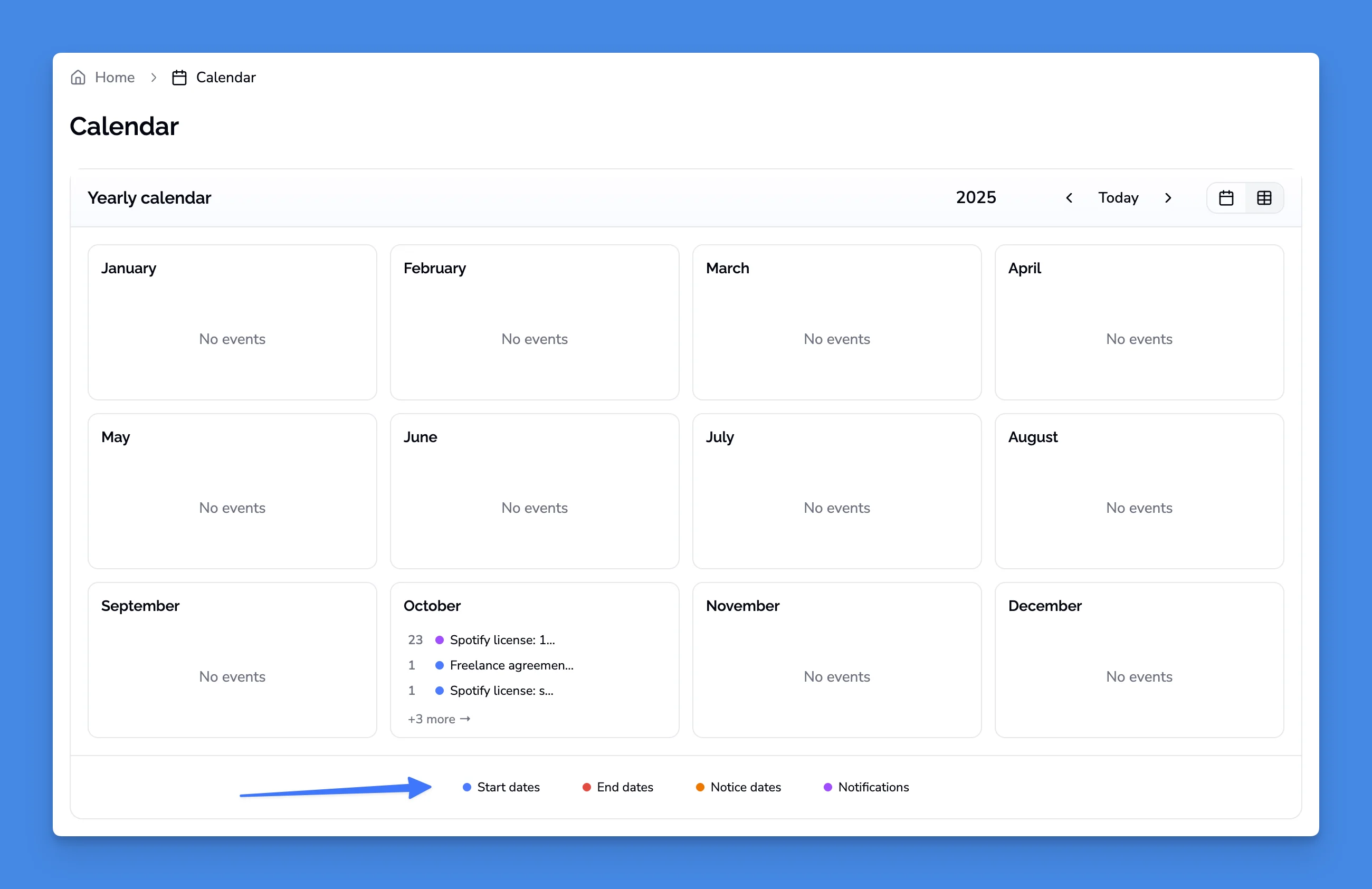
Navigate to Calendar in the main menu to see yearly and monthly calendar widgets.
Click any date to jump directly to the associated contract or notification.
Selecting visible dates
Choose which date types appear in your calendar:
- Start dates - When contracts begin
- End dates - When contracts expire or renew
- Notice dates - Deadlines for cancellation notices
- Notifications - Reminders you've configured for each contract
Enable or disable any combination. Your selections apply to both the web calendar and the ICS feed.
Syncing to external calendars
Subscribe to Contracko's ICS feed to see contract dates in your preferred calendar app. The feed updates automatically when you add or modify contracts.
Supported calendar apps
Any calendar application that supports the ICS standard works with Contracko:
- Google Calendar - Refresh interval: 12-24 hours (fixed by Google)
- Apple Calendar - Configurable refresh interval, supports manual refresh
- Outlook - Configurable refresh interval
- Other ICS-compatible apps - Check your app's documentation for refresh settings
Each app fetches the feed at different intervals. Some allow you to configure the frequency or trigger a manual refresh.
How to subscribe to the feed
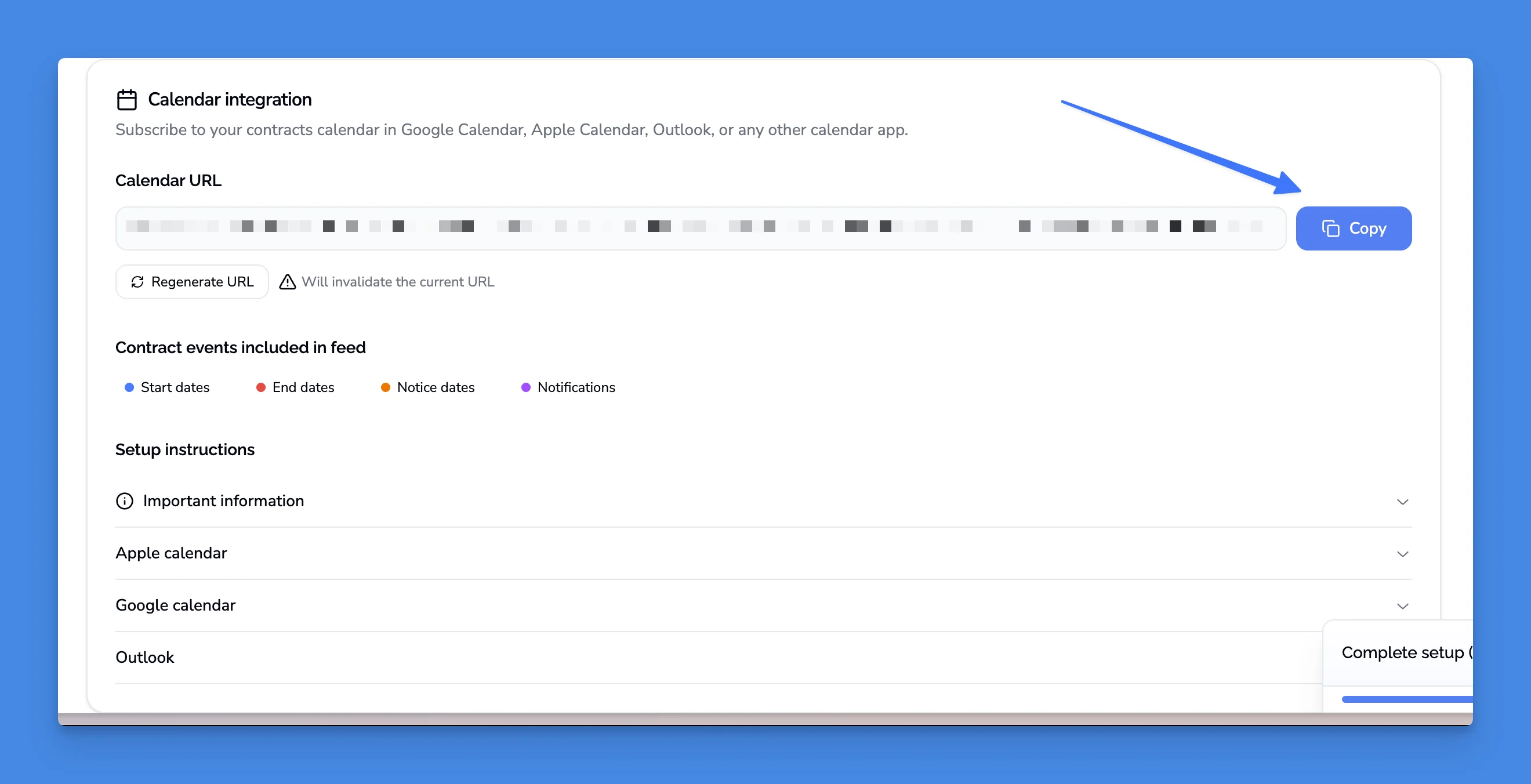
- Navigate to Calendar in Contracko
- Copy the ICS feed URL displayed on the page
- Open your calendar app
- Add the subscription using the copied URL
Setting up in Google Calendar
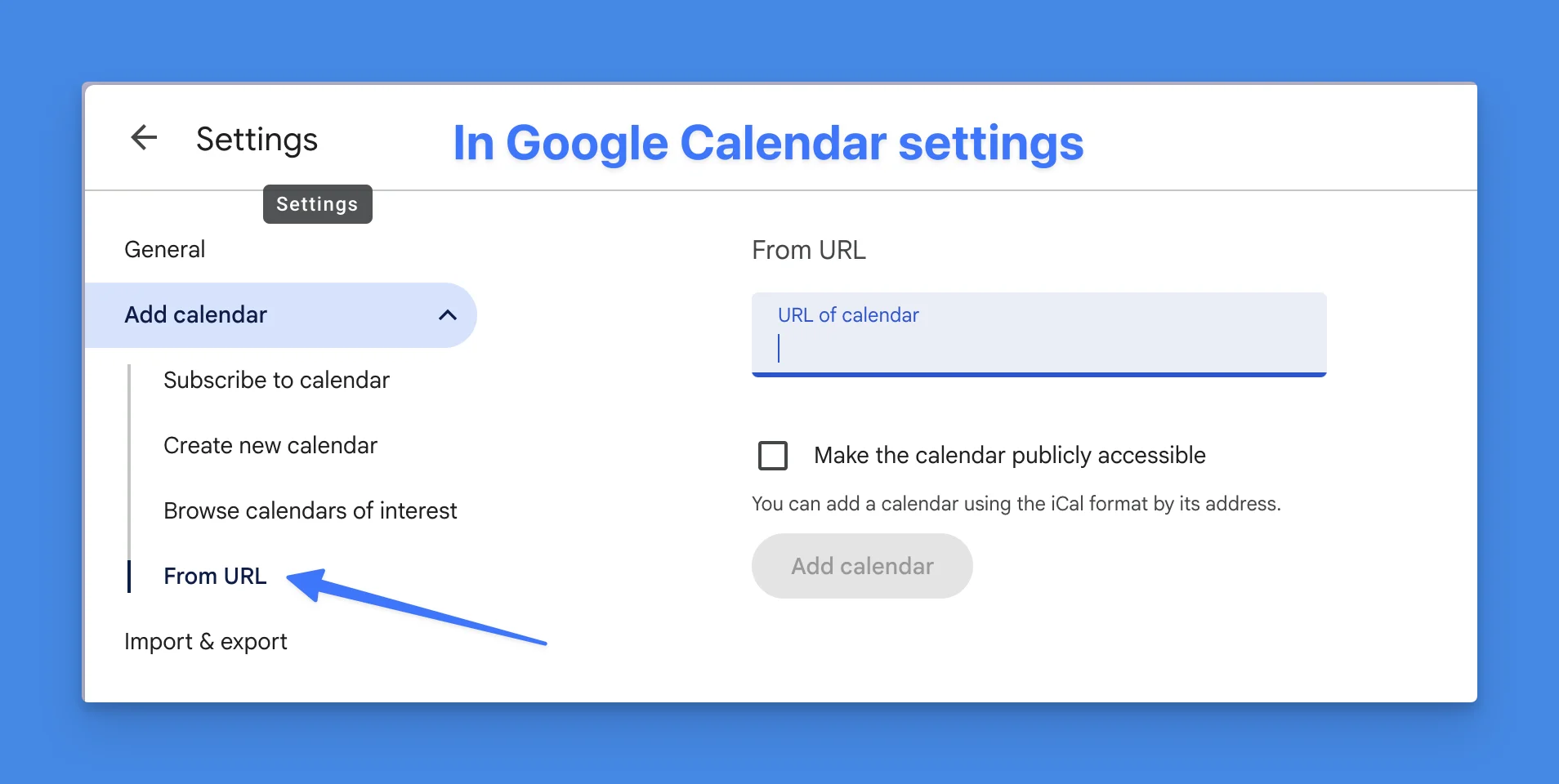
- Open Google Calendar in your browser
- Click the + next to "Other calendars"
- Select From URL
- Paste the ICS feed URL
- Click Add calendar
Google automatically refreshes the feed every 12-24 hours.
Setting up in Apple Calendar
- Open Calendar on Mac
- Go to File → New Calendar Subscription
- Paste the ICS feed URL
- Click Subscribe
- The calendar appears as "Contracts" or "Contract Dates"
- Toggle it on or off in your calendar list
Setting up in Outlook
- Open Outlook
- Go to Calendar
- Select Add Calendar → From Internet
- Paste the ICS feed URL
- Click OK
Viewing contract details from calendar events
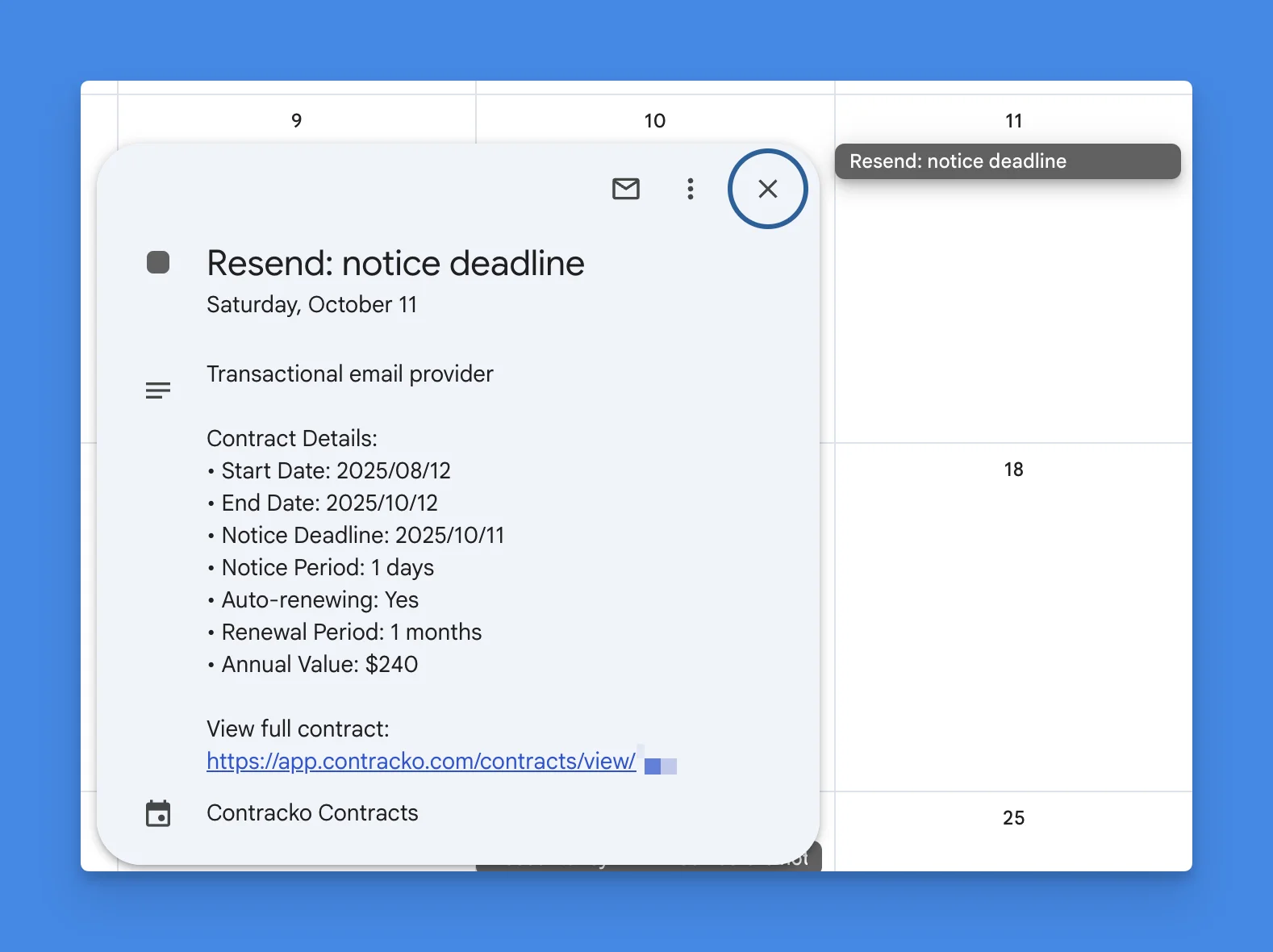
Calendar events created by the feed include:
- Contract title and counterparty name
- Date type (start, end, notice, notification)
- Link to the contract in Contracko
Click any event to see these details and access the full contract.
Customizing your feed
Return to Calendar → Settings in Contracko to adjust which dates appear:
- Disable date types you don't need (e.g., start dates if you only track renewals)
- Changes apply on the next feed refresh
- Your calendar app fetches the updated feed automatically
If you're using Apple Calendar, you can trigger a manual refresh to see changes immediately.
Tips
Disable start dates if you only care about renewals - Most users focus on end dates and notice periods to avoid missing cancellation deadlines.
Use calendar colors to distinguish contract dates - Most calendar apps let you assign colors to subscribed calendars. Choose a distinct color so contract dates stand out from your other events.